You can add or remove a photo of your office or any workspace type in it by using the Photo feature.
The location image will be visible on the Location Overview screen in the End User App. The Workplace Type images will be visible in the Information screen of the workspaces of that type.
Images assigned to a Workplace Type are displayed on the Information screen for all workspaces of that type.
If a specific image is assigned directly to an individual workspace using the Edit function in the Setup App, that image will override and be displayed instead of the Workplace Type image.
You can either upload a picture or take it directly with your phone camera.
The following video shows how to change the photo:
Adding a photo of Location/Workplace Type
1. Select the "Photo" tool in the VBOS Setup App: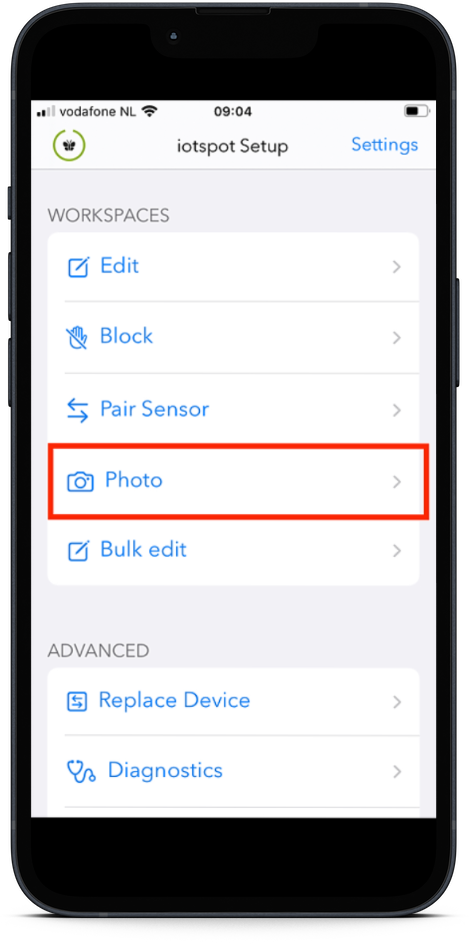
2. (Android only) select the Location that you wish to add photos for
3. Select the location/workplace type that you would like to configure the photo of
Android iOS
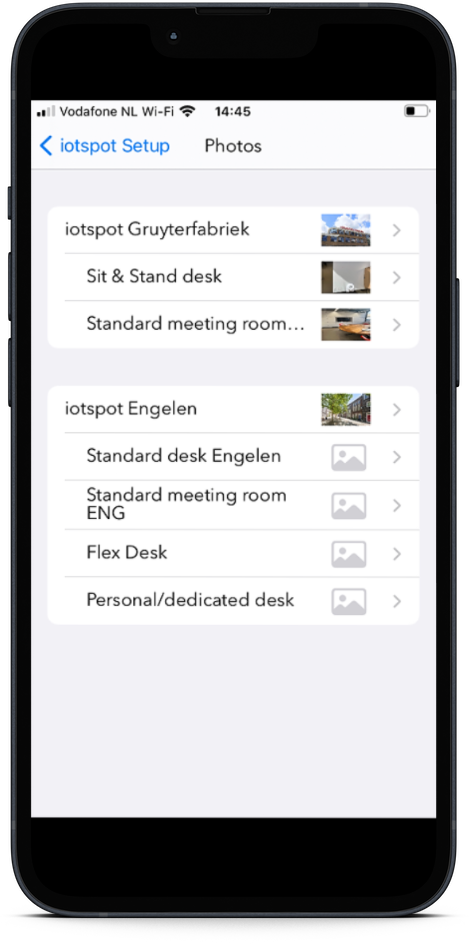
4. (iOS only) Choose what you would like to do: